

Preparation starts at the first contact
medudoc brings patients into the digital preoperative workflow as early as possible – via the QR code on a leaflet, the link on your website or the appointment confirmation. No app, on a smartphone or a computer.
The early start
Every day before the appointment is preparation time
The earlier patients enter the workflow, the more time remains for missing findings, open questions about medication and planning the appointment. On paper, data collection often only begins in the waiting room. With medudoc, it begins at the first contact.
Paper form: from “Premedication” – Collected in the waiting room, then typed up
With medudoc: from “First contact” – Collected from the first contact, structured from the start
- is the average duration of a premedication consultation
- 33.6 min
- is the average time patients wait in the pre-anaesthesia clinic
- 58 min
Source: Kieninger et al., Anaesthesist 67, 93–108 (2018); prospective, 2,233 premedication consultations. Missing documents were the most frequent disruption to the process in that study.
Points of contact
Three ways into the digital workflow
Patients start where they first encounter your facility. Every route leads into the same patient portal.
QR code on the leaflet
A printed leaflet is available in the outpatient clinic, the waiting room or at referring practices. Patients scan the QR code with their smartphone camera and start immediately.
Link on your website
On the page of your outpatient clinic or specialty, a link leads directly into the workflow. Patients start on a computer or smartphone whenever it suits them.
Invitation with the appointment confirmation
If the appointment has already been set, the personal link arrives by email or text message. With an HIS or PDMS connection, booking the appointment triggers the invitation automatically, including master data.
Scheduling
Appointment first or preparation first?
medudoc adapts to your scheduling process. The workflow starts before or after the appointment is made – either way, the result is a fully prepared case.
Appointment first
For existing scheduling processes, including appointment booking in the HIS.
Your facility schedules the appointment as usual.
- 2
The appointment confirmation contains the personal link to the workflow.
- 3
Patients prepare digitally until the appointment.
No new scheduling process – the link comes with the confirmation patients receive anyway.
Preparation first
For outpatient clinics that only give appointments once documents are complete.
- 1
Patients start via QR code or website link.
- 2
They complete their medical history, medication and findings in full.
Only then is the appointment scheduled.
Appointments are only made once all information is available. Your team plans with complete data instead of gaps.
- 1
Fully prepared case
Medical history, medication and findings are available in structured form in the Healthcare Professional Dashboard (HCP Dashboard) – before the conversation begins.

Preparation where patients can relax
Before a procedure, thoughts are racing. At home, at their own pace and in their own language, patients can answer health questions better than with a clipboard in the waiting room.
Sign-in
Securely signed in – with no new password
Health data needs protected access. medudoc offers three ways that combine security with an easy start.
Personal link with a second factor
Patients open their link and confirm it with a one-time code by text message or email. No account is needed.
Sign in with an existing account
Anyone who already uses a Google, Microsoft 365 or Facebook account signs in with it. No additional password is needed.
medudoc patient account
A dedicated account with multi-factor authentication that is available across cases – for example for further procedures.
No app
One link is enough – on any device
The patient portal runs in the browser. Patients install nothing and use the device they are familiar with.
- No download, no app store, no account required
- No app
- On smartphone, tablet or computer – in the browser
- Anywhere
- languages for patient education content
- 23
- Patients set font size and contrast themselves
- Adjustable
- Patients who prefer not to use their own device can enter the information on site, for example on a tablet in the outpatient clinic.
- Legally binding consent is given on the German original; the translation helps patients whose first language is not German to understand it.
What intake takes care of
From the first click to a created case
As long as patients are in the digital process, medudoc includes everything that can be captured or signed – from the privacy notice to the hospital's own forms. What used to happen on paper at reception can be done before patients enter the hospital.
For patients
- Choose the language in which they are guided through the workflow
- Check and complete personal details
- Sign documents electronically: information sheet, data protection, consents, treatment contract
- Fill in and sign other forms from your hospital
- Indicate preferred consultation: on site or telemedical
For your team
- Start via the HIS or PDMS connection, with master data and existing findings
- Send link or QR code by email, text message or as a printout
- Define which documents and forms patients fill in and sign
- All cases in one place, sorted by status in the HCP Dashboard
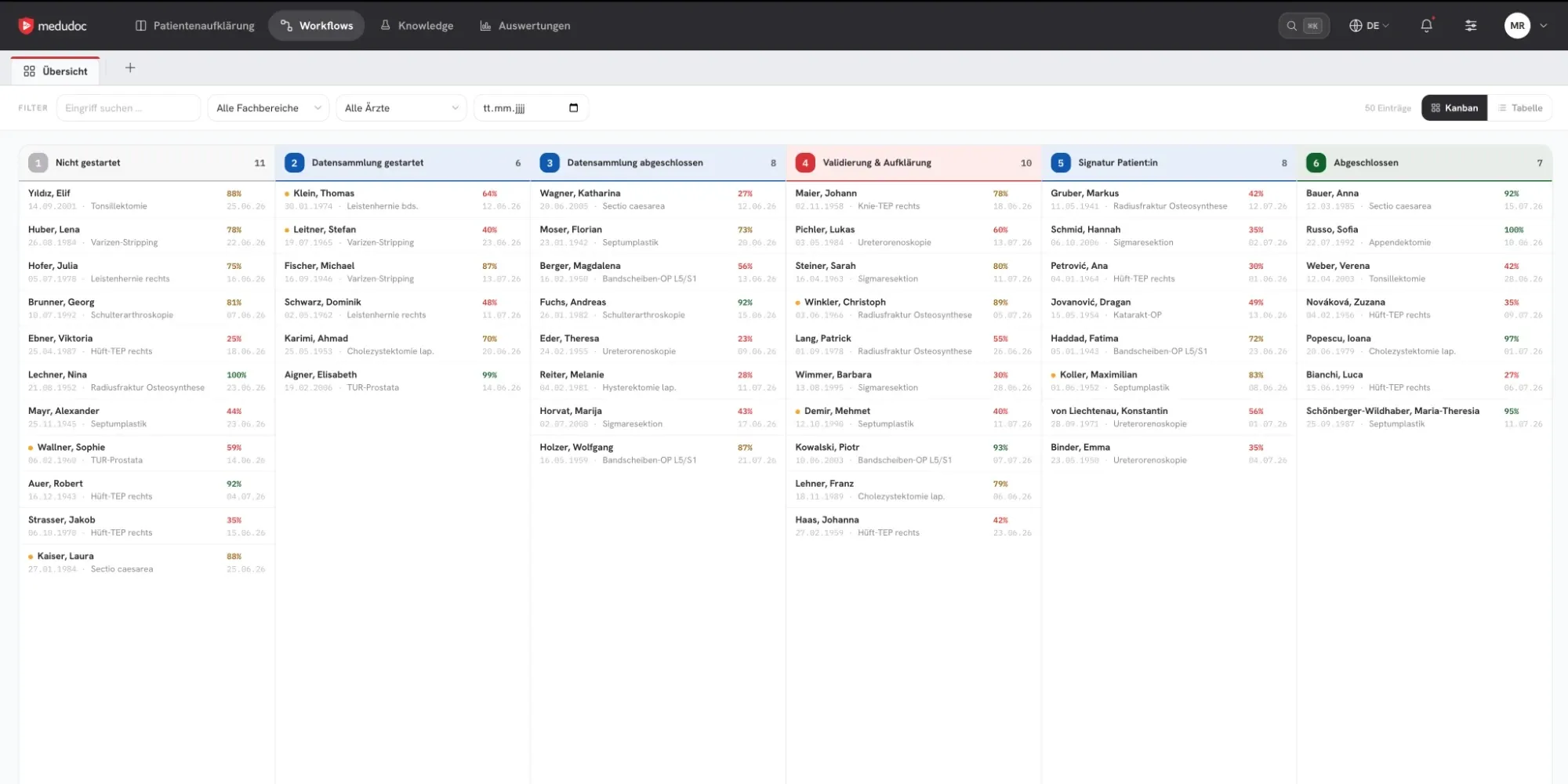
Next, patients record pre-existing conditions, medication and findings in the digital medical history.
Continue to the digital medical historyWhat comes next in the workflow
- Digital medical historyOne questionnaire for surgery and anaesthesia – adaptive, with medication by photo and upload of findings.Learn more
- Validation & risk assessmentRisk factors and key figures for each case, prepared for medical assessment.Learn more
- Patient education videoPersonalised patient education videos for each procedure, with subtitles and a reading version.Learn more
- AccessibilityAdjustable font size and contrast, videos in plain language with subtitles, in 23 languages.Learn more
How does the start fit your scheduling process?
In a demo, we show you both routes – appointment first and preparation first – from the perspective of your patients and your team.